Getting Started
- Go to the projects page inside of the Stormly application and click Set-Up Data.
-
Under Use tracking code from: copy and paste the script onto the static HTML page where you bootstrap your React app (usually
index.htmlorapp.html):
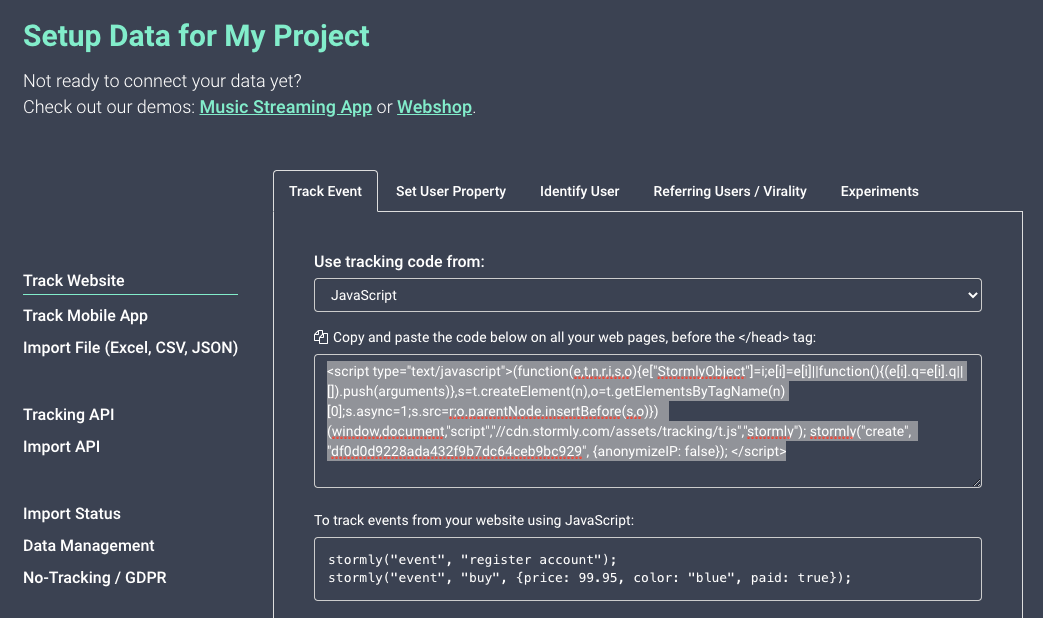

Note: Tracked data becomes available in Stormly within seconds usually, but new projects become "active" only once at least 50 unique users are tracked.
Code Examples
For all code examples below, click Open live example links to open a fully working HTML page for each example.
Inspect the network requests in your browser's developer console to verify a pixel image request is sent to http://t.stormly.com/.../
When you view the source for the HTML example, make sure to replace YOUR_STORMLY_KEY_HERE with the one from your own project (found at the "Setup Data" page in Stormly).
Tracking Pages
When you have a page visit you want to track in React, call:
window.stormly("event", "viewItem", {price: 9.99, color: "blue"});The last argument with extra properties is optional, but it's always good to add some extra context.
Class Component
Call the tracking code when the component mounts, inside componentDidMount:
class HomePageComponent extends React.Component {
  constructor(props) {
    super(props);
    this.state = {};
  }

  componentDidMount() {
    window.stormly("event", "visitHomePage");
  }

  render() {
    return <h1>Welcome to the Home Page</h1>;
  }
}
Equivalent using Functional Hooks
Open live example →function HomePageComponent() {
// Empty array [] means useEffect runs once, similar to componentDidMount()
useEffect(() => {
window.stormly("event", "visitHomePage");
}, [])
return <h1>Welcome to the Home Page</h1>;
}
Tracking Interactions
To track interactions like a button click, call the tracking code where the click event is handled:
Class Component
Open live example →class ListProductsComponent extends React.Component {
componentDidMount() {
window.stormly("event", "viewProductListing");
}
handleClickProduct(props) {
window.stormly("event", "viewProduct", {color: props.color, name: props.name});
}
render() {
return <div>
<h1>Choose an item from our webshop:</h1>
<ul>
<li><a href="#" onClick={this.handleClickProduct.bind(this, {name: "jeans", color: "blue"})}>Blue Jeans</a></li>
<li><a href="#" onClick={this.handleClickProduct.bind(this, {name: "sweater", color: "red"})}>Red Sweater</a></li>
<li><a href="#" onClick={this.handleClickProduct.bind(this, {name: "sneakers", color: "green"})}>Green Sneakers</a></li>
</ul>
</div>;
}
}
Equivalent using Functional Hooks
Open live example →function ListProductsComponent() {
useEffect(() => {
window.stormly("event", "viewProductListing");
}, [])
function handleClickProduct(props) {
window.stormly("event", "viewProduct", {color: props.color, name: props.name});
}
return <div>
<h1>Choose an item from our webshop:</h1>
<ul>
<li><a href="#" onClick={() => handleClickProduct({name: "jeans", color: "blue"})}>Blue Jeans</a></li>
<li><a href="#" onClick={() => handleClickProduct({name: "sweater", color: "red"})}>Red Sweater</a></li>
<li><a href="#" onClick={() => handleClickProduct({name: "sneakers", color: "green"})}>Green Sneakers</a></li>
</ul>
</div>;
}
Using Redux, MobX Or Other State Management
The examples above are enough for most cases when using React. Even when using state libraries such as Redux or MobX, the above examples will work fine — the tracking calls don't change any state, so they don't have to be part of Redux or MobX state management.
Identifying Users
When a user logs in, you can link their anonymous identity to one that is known by you:
window.stormly("identify", "user-12345");Class Component
Open live example →class LoginPageComponent extends React.Component {
constructor(props) {
super(props);
this.state = { username: null, password: null };
}
async loginUser(credentials) {
return fetch("http://localhost:8080/login", {
method: "POST",
headers: { "Content-Type": "application/json" },
body: JSON.stringify(credentials)
}).then(data => data.json());
}
async handleLogin(e) {
e.preventDefault();
const userID = await this.loginUser({username: this.state.username, password: this.state.password});
if (userID) {
window.stormly("identify", userID);
alert("Welcome " + userID);
}
}
render() {
return <div>
<h1>Log-in</h1>
<form onSubmit={(e) => this.handleLogin(e)}>
<label><p>Username</p><input type="text" onChange={e => this.setState({username: e.target.value})} /></label>
<label><p>Password</p><input type="password" onChange={e => this.setState({password: e.target.value})} /></label>
<div><button type="submit">Submit</button></div>
</form>
</div>;
}
}
Equivalent using Functional Hooks
Open live example →function LoginPageComponent() {
const [username, setUsername] = useState();
const [password, setPassword] = useState();
const loginUser = async credentials => {
return fetch("http://localhost:8080/login", {
method: "POST",
headers: { "Content-Type": "application/json" },
body: JSON.stringify(credentials)
}).then(data => data.json());
};
const handleLogin = async e => {
e.preventDefault();
const userID = await loginUser({username, password});
if (userID) {
window.stormly("identify", userID);
alert("Welcome " + userID);
}
};
return <div>
<h1>Log-in</h1>
<form onSubmit={handleLogin}>
<label><p>Username</p><input type="text" onChange={e => setUsername(e.target.value)} /></label>
<label><p>Password</p><input type="password" onChange={e => setPassword(e.target.value)} /></label>
<div><button type="submit">Submit</button></div>
</form>
</div>;
}
Setting User Properties
To set properties on a user, such as their favorite color, use:
window.stormly("set", {favoriteColor: "blue", firstName: "Dave"});Class Component
Open live example →class ColorPickerComponent extends React.Component {
handlePickColor(color) {
window.stormly("set", {favoriteColor: color});
alert("Your favorite color is " + color);
}
render() {
return <div>
<h1>Choose your favorite color:</h1>
<ul>
<li><a href="#" onClick={this.handlePickColor.bind(this, "blue")}>Blue</a></li>
<li><a href="#" onClick={this.handlePickColor.bind(this, "red")}>Red</a></li>
<li><a href="#" onClick={this.handlePickColor.bind(this, "green")}>Green</a></li>
</ul>
</div>;
}
}
Equivalent using Functional Hooks
Open live example →function ColorPickerComponent() {
function handlePickColor(color) {
window.stormly("set", {favoriteColor: color});
alert("Your favorite color is " + color);
}
return <div>
<h1>Choose your favorite color:</h1>
<ul>
<li><a href="#" onClick={() => handlePickColor("blue")}>Blue</a></li>
<li><a href="#" onClick={() => handlePickColor("red")}>Red</a></li>
<li><a href="#" onClick={() => handlePickColor("green")}>Green</a></li>
</ul>
</div>;
}
A/B Testing Experiments
A/B testing experiments allow you to show a control or variation, based on random assignment of a user to one of these two groups. Subsequent calls will make sure the user will always belong to the same control or variation group.
Example: show a payment button in blue or red with a 50/50 chance:
Class Component
Open live example →class PaymentPageComponent extends React.Component {
constructor(props) {
super(props);
this.state = { paymentBtnColor: "blue" };
}
componentDidMount() {
window.stormly("experiment", "ab-test-payment-btn-color", {
control: () => {
// Control is the default state (blue).
},
variation: () => {
this.setState({paymentBtnColor: "red"});
}
}, {waitForContentLoaded: false});
}
render() {
return <input type="button" style={{backgroundColor: this.state.paymentBtnColor}} value="Buy Item" />;
}
}
Equivalent using Functional Hooks
Open live example →function PaymentPageComponent() {
const [paymentBtnColor, setPaymentBtnColor] = useState("blue");
useEffect(() => {
window.stormly("experiment", "ab-test-payment-btn-color", {
control: () => {
// Control is the default state (blue).
},
variation: () => {
setPaymentBtnColor("red");
}
}, {waitForContentLoaded: false});
}, [])
return <input type="button" style={{backgroundColor: paymentBtnColor}} value="Buy Item" />;
}