Step 1 — Get Your API Key
-
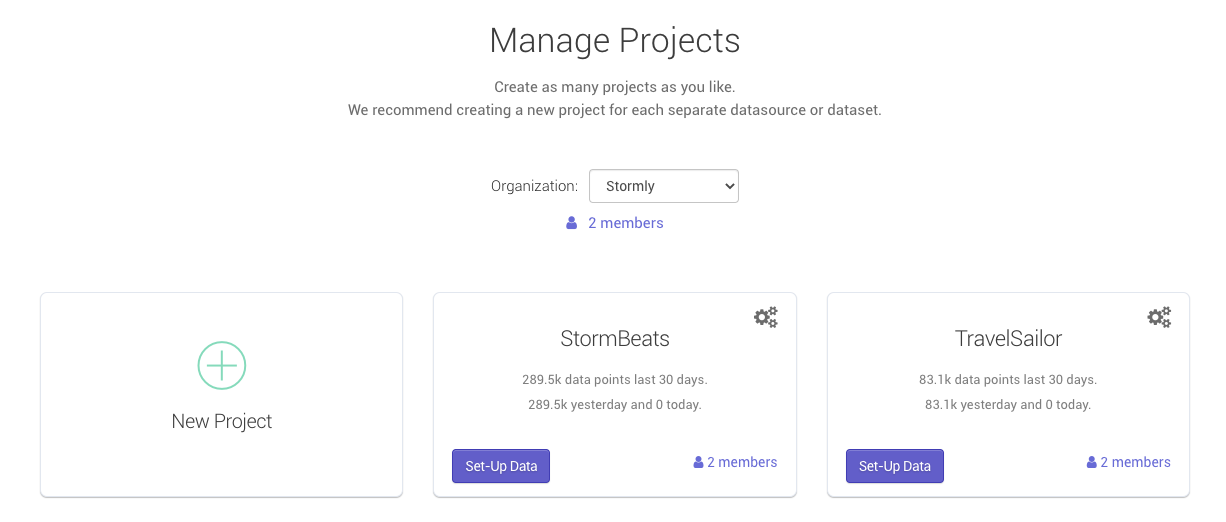
Go to the projects page inside of the Stormly application and click Set-Up Data as shown below:
-
Under "Use tracking code from:" pick "Segment.com", then copy the API key as shown below:
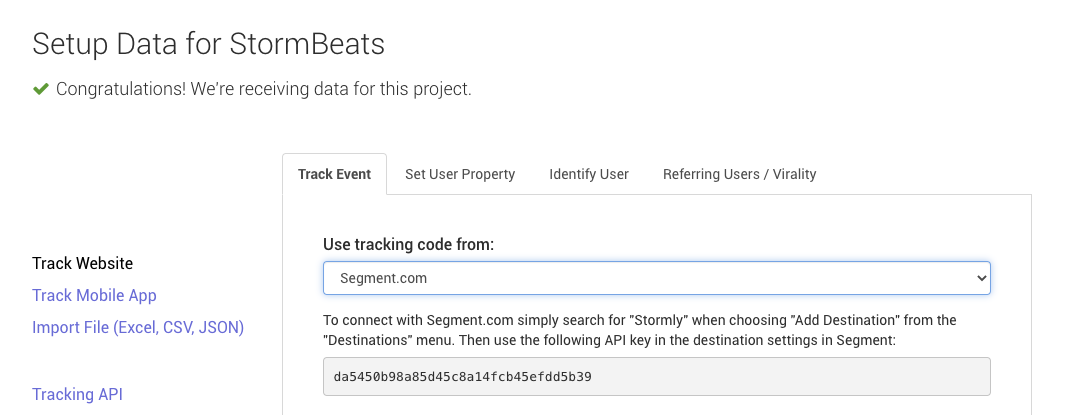
- Copy the API Key. You will need it in the next step.


Step 2 — Install the Stormly Extension
- Download the .zip archive of the Stormly extension. Click here to download
- Upload the .zip archive to your Adobe Commerce (Magento) server.
- Extract files on server, and move the Stormly folder into the app/code folder.
-
Complete installation by running these commands on your server:
$ php bin/magento maintenance:enable $ php bin/magento setup:upgrade $ php bin/magento setup:static-content:deploy -f $ php bin/magento module:enable Stormly_EventLogger --clear-static-content $ php bin/magento setup:upgrade $ php bin/magento cache:clean $ php bin/magento cache:flush - Use Adobe's official guide to set permissions on the server file system. Read more here.
-
Finally, disable maintenance mode by running:
$ php bin/magento maintenance:disable
Step 3 — Configure the Stormly API Key
- Log in to your Magento Admin Panel.
- In the left sidebar, go to: Stores → Configuration
- In the Configuration page: Scroll to the General tab on the left (you may need to expand it).
- Under General, you should now see a new section labeled: Stormly Analytics
- Click on Stormly Analytics and you'll see the field for Stormly API Key. Use the API key copied earlier, then click Save Config.
-
Clear cache by running:
$ php bin/magento cache:clean
$ php bin/magento cache:flush
🛠 If the Stormly Analytics section is missing, make sure your module is enabled by running:
$ php bin/magento module:status Stormly_EventLoggerIf not enabled, revisit the "Install the Stormly Extension" section above.